
How I Built a Free Local Video Transcription Tool in 15 Minutes (And Saved $900)
I had a problem. Actually, 70 problems sitting on my laptop.
Seventy videos. YouTube tutorials I’d recorded for my students. Course content. Client walkthroughs. Hours and hours of footage—all needing transcripts.
Not for fun. I needed those transcripts to turn videos into blog posts for aibuilttools.com, create documentation, and make my content searchable. Simple enough, right?
Wrong.
Every transcription service wanted the same thing: upload your videos to their servers and pay monthly. Rev.com quoted me $900 for 70 videos. Otter.ai caps you at 600 minutes per month for $20. Descript has usage limits I’d blow through in one afternoon.
But here’s what really bothered me…
Why would I hand over my intellectual property to companies that probably store it forever and use it to train their AI models? Why pay monthly fees when I just needed a simple tool that works?
I didn’t want to become someone’s training data. I just wanted transcripts.
So I did what any builder would do—I opened VS Code, fired up Claude AI, and built my own tool in 15 minutes.
No monthly fees. No cloud uploads. No usage limits. Just pure, offline transcription running on my laptop.
And you know what? It worked better than I expected.
What I Actually Built (The Real Numbers)
Let me be clear—this isn’t some marketing fluff. Here’s what actually happened when I used this tool:
My Real Test:
- Videos processed: 70 videos
- Total duration: ~8 hours of content
- Processing time: 40 minutes on my basic laptop
- Accuracy: ~92% (comparable to professional services)
- My cost: $0.00
- What Rev.com charges: $900
- What Otter.ai charges: $240/year
The tool processed at roughly 12x real-time speed. A 10-minute video took about 50 seconds to transcribe.
This isn’t running on some beefy gaming rig either. My setup:
- Basic Windows 11 laptop
- Intel i5 processor
- 8GB RAM
- No GPU required
- VS Code as my editor
If my basic laptop can handle 70 videos in 40 minutes, yours can too.
What This Tool Actually Does
I built this batch video transcription tool with Claude AI in one sitting, writing all the code in VS Code. Here’s exactly what it does:
Batch Video Transcription Tool
Point it at a folder containing your videos. The tool automatically:
✅ Finds all video files (MP4, AVI, MOV, MKV)
✅ Processes them one by one using Whisper AI
✅ Generates complete transcripts for each video
✅ Creates timestamped segments for easy navigation
✅ Combines everything into one organized markdown file
✅ Includes a table of contents for quick access
The entire process:
- Run 100% offline on your computer
- Cost $0 to use (forever)
- Work on Windows, Mac, and Linux
- Require zero coding skills to use
If you can follow along in VS Code and copy-paste some commands, you can use this.
Why This Actually Matters (Beyond Saving Money)
Sure, saving $900 is nice. But here’s what really matters in this digital era where everyone’s learning to build stuff:
1. Complete Privacy
Your videos never leave your computer. No cloud uploads. No terms of service that give companies rights to use your content for AI training. Your intellectual property stays yours.
2. Unlimited Usage
Process 10 videos or 10,000 videos. No monthly caps. No per-minute charges. No “upgrade to pro” upsells.
3. Full Control
The code is yours. Modify it in VS Code. Extend it. Build on it. Want to add features? Go ahead. This is how you learn—by doing, by building, by breaking things and fixing them.
4. Actually Works Offline
After initial setup, disconnect from the internet. Still works perfectly. Great for sensitive content or working on client projects under NDA.
5. Learn Something New
In this digital era, the best investment is learning to build your own tools. Today it’s a transcription tool. Tomorrow it’s an automation script. Next month it’s a full SaaS product. You’re not just getting a tool—you’re learning a skill.
Who Should Actually Build This?
This isn’t just for Python developers. Here’s who gets the most value:
Content Creators
Turn YouTube videos into blog posts (literally what I do for ceeveeglobal.com and aibuilttools.com). Generate subtitle files for accessibility. Create podcast show notes. Repurpose video content without re-watching everything.
Freelancers Building Skills
Here’s where it gets interesting. Build this once, learn how it works. Offer transcription services at $50-100 per video. Your cost? $0. That’s 100% profit margin. Process 20 videos monthly and you’re looking at $1,000-1,600 in revenue with maybe 3-4 hours of actual work.
But more importantly—you’re learning Python, AI integration, and automation. Skills that’ll pay off for years.
Course Creators & Educators
Transcribe lecture recordings automatically. Turn video courses into text guides. Create course documentation without manual typing. No monthly subscriptions eating into your margins.
Anyone Who Wants to Learn
This is a perfect first AI project. You’ll learn how to use Python, integrate AI models, handle file processing, and build something actually useful. Start simple. Build fast. Learn by doing.
Complete Setup Guide (From Absolute Zero)
I’m going to walk you through everything. I’ll assume you’ve never touched Python or VS Code before.
Step 1: Install VS Code (3 Minutes)
All Platforms:
- Go to code.visualstudio.com
- Download for your operating system
- Run the installer
- Open VS Code
- Install the Python extension:
- Click Extensions icon (or press
Ctrl+Shift+X) - Search for “Python”
- Click Install on the official Microsoft Python extension
- Click Extensions icon (or press
Done! VS Code is ready.
Step 2: Install Python (5 Minutes)
Windows Users:
- Go to python.org
- Click “Download Python 3.10+” (or newer)
- CRITICAL: Check “Add Python to PATH” during installation
- Click through the installer
Mac Users:
# Open Terminal and run:
brew install python3
Linux Users:
sudo apt update
sudo apt install python3 python3-pip
Verify it worked in VS Code:
- In VS Code, press `Ctrl+“ (backtick) to open the integrated terminal
- Type:
python --version
You should see “Python 3.10.x” or newer. Perfect!
Step 3: Install FFmpeg (The Audio Processor)
FFmpeg extracts audio from your video files. This is where I initially messed up, so pay attention.
Windows (Manual Installation):
- Download from ffmpeg.org
- Get “ffmpeg-release-essentials.zip”
- Extract to
C:\\ffmpeg - Add to system PATH:
- Right-click “This PC” → Properties
- Advanced System Settings → Environment Variables
- Find “Path” → Edit → New
- Add:
C:\\ffmpeg\\bin - Click OK on everything
- Restart VS Code (important!)
Mac:
brew install ffmpeg
Linux:
sudo apt install ffmpeg
Test it worked in VS Code terminal:
ffmpeg -version
See version info? You’re good!
Step 4: Install Whisper AI (The Transcription Engine)
This is the AI model that does the magic. Downloads to your computer once, then runs offline forever.
In VS Code terminal, run:
pip install openai-whisper
First run downloads ~150MB. After that, everything is local.
Step 5: Create Your Project in VS Code
Now we’ll set up the actual tool.
1. Create a project folder:
In VS Code:
- Click
File→Open Folder - Create a new folder called
video-transcription-tool - Select it and click
Open
2. Create the requirements file:
In VS Code:
- Click
File→New File - Save as
requirements.txt - Paste this content:
# AI Video Transcription Tool - Requirements
# Created by: Dimuthu Harshana
# Website: <https://aibuilttools.com> | <https://ceeveeglobal.com>
# Free to use for personal and commercial projects!

openai-whisper
opencv-python
pytesseract
Pillow
numpy
3. Install the requirements:
In VS Code terminal (`Ctrl+“):
pip install -r requirements.txt
4. Create the main script:
In VS Code:
- Click
File→New File - Save as
batch_transcribe.py - Paste the complete code (below)
Step 6: The Complete Code
Here’s the exact code I use. Copy this into your batch_transcribe.py file in VS Code:
import whisper
import os
import glob
from pathlib import Path
from datetime import datetime

os.environ["PATH"] += os.pathsep + r"C:\\ffmpeg\\bin"

def transcribe_single_video(video_path, model):
    """Transcribe a single video and return the result"""
    print(f"\\n{'='*60}")
    print(f"Processing: {os.path.basename(video_path)}")
    print(f"{'='*60}")

    try:
        result = model.transcribe(video_path, verbose=True)
        print(f"✅ Completed: {os.path.basename(video_path)}")
        return result
    except Exception as e:
        print(f"❌ Error processing {os.path.basename(video_path)}: {str(e)}")
        return None

def format_timestamp(seconds):
    """Convert seconds to MM:SS format"""
    minutes = int(seconds // 60)
    secs = int(seconds % 60)
    return f"{minutes}:{secs:02d}"

def batch_transcribe_folder(folder_path, output_file=None):
    """
    Transcribe all MP4 files in a folder and combine into one markdown file

    Args:
        folder_path: Path to folder containing MP4 files
        output_file: Optional output filename (default: transcripts_YYYYMMDD_HHMMSS.md)
    """

    # Get all MP4 files
    video_files = set()
    for ext in ['*.mp4', '*.MP4', '*.avi', '*.AVI', '*.mov', '*.MOV', '*.mkv', '*.MKV']:
        video_files.update(glob.glob(os.path.join(folder_path, ext)))

    if not video_files:
        print(f"❌ No video files found in {folder_path}")
        return

    # Sort files alphabetically
    video_files = sorted(list(video_files))

    print(f"\\n📁 Found {len(video_files)} video file(s) in folder")
    print(f"📂 Folder: {folder_path}\\n")

    # List all files to be processed
    print("Files to process:")
    for i, video in enumerate(video_files, 1):
        print(f"  {i}. {os.path.basename(video)}")

    # Create output filename if not provided
    if output_file is None:
        timestamp = datetime.now().strftime("%Y%m%d_%H%M%S")
        output_file = os.path.join(folder_path, f"transcripts_{timestamp}.md")

    # Load Whisper model once
    print("\\n🔄 Loading Whisper model (this may take a moment)...")
    model = whisper.load_model("base")
    print("✅ Model loaded successfully!\\n")

    # Process each video
    all_results = []

    for i, video_path in enumerate(video_files, 1):
        print(f"\\n[{i}/{len(video_files)}] ", end="")
        result = transcribe_single_video(video_path, model)

        if result:
            all_results.append({
                'filename': os.path.basename(video_path),
                'path': video_path,
                'result': result
            })

    # Create combined markdown file
    print(f"\\n{'='*60}")
    print("Creating combined transcript file...")
    print(f"{'='*60}\\n")

    with open(output_file, 'w', encoding='utf-8') as f:
        # Header
        f.write("# Video Transcripts\\n\\n")
        f.write(f"**Generated**: {datetime.now().strftime('%Y-%m-%d %H:%M:%S')}\\n")
        f.write(f"**Folder**: {folder_path}\\n")
        f.write(f"**Total Videos**: {len(all_results)}\\n\\n")
        f.write("---\\n\\n")

        # Table of contents
        f.write("## Table of Contents\\n\\n")
        for i, item in enumerate(all_results, 1):
            # Create anchor link (replace spaces with hyphens, remove special chars)
            anchor = item['filename'].lower().replace(' ', '-').replace('.mp4', '')
            anchor = ''.join(c for c in anchor if c.isalnum() or c == '-')
            f.write(f"{i}. [{item['filename']}](#{anchor})\\n")
        f.write("\\n---\\n\\n")

        # Individual transcripts
        for item in all_results:
            filename = item['filename']
            result = item['result']

            f.write(f"## {filename}\\n\\n")

            # Full transcript
            f.write("### Complete Transcript\\n\\n")
            f.write(result['text'])
            f.write("\\n\\n")

            # Timestamped segments
            f.write("### Timestamped Segments\\n\\n")
            for segment in result['segments']:
                timestamp = format_timestamp(segment['start'])
                f.write(f"**[{timestamp}]** {segment['text'].strip()}\\n\\n")

            f.write("\\n---\\n\\n")

    print(f"✅ All transcripts saved to: {output_file}")
    print(f"\\n📊 Summary:")
    print(f"   - Total videos processed: {len(all_results)}")
    print(f"   - Failed: {len(video_files) - len(all_results)}")
    print(f"   - Output file: {output_file}")

if __name__ == "__main__":
    import sys

    if len(sys.argv) < 2:
        print("Usage: python batch_transcribe.py <folder_path> [output_file]")
        print("\\nExample:")
        print('  python batch_transcribe.py "C:\\\\Users\\\\Harshana\\\\Downloads\\\\Videos"')
        print('  python batch_transcribe.py "C:\\\\Videos" "my_transcripts.md"')
        sys.exit(1)

    folder_path = sys.argv[1]
    output_file = sys.argv[2] if len(sys.argv) > 2 else None

    if not os.path.exists(folder_path):
        print(f"❌ Error: Folder not found: {folder_path}")
        sys.exit(1)

    batch_transcribe_folder(folder_path, output_file)
Step 7: Run Your First Transcription
Now let’s actually use the tool!
1. Prepare your videos:
Put some test videos in a folder. I’ll use C:\\Videos\\Test as an example.
2. Run the script in VS Code:
In VS Code terminal (`Ctrl+“):
python batch_transcribe.py "C:\\Videos\\Test"
Or with a custom output filename:
python batch_transcribe.py "C:\\Videos\\Test" "my_transcripts.md"
3. Watch it work!
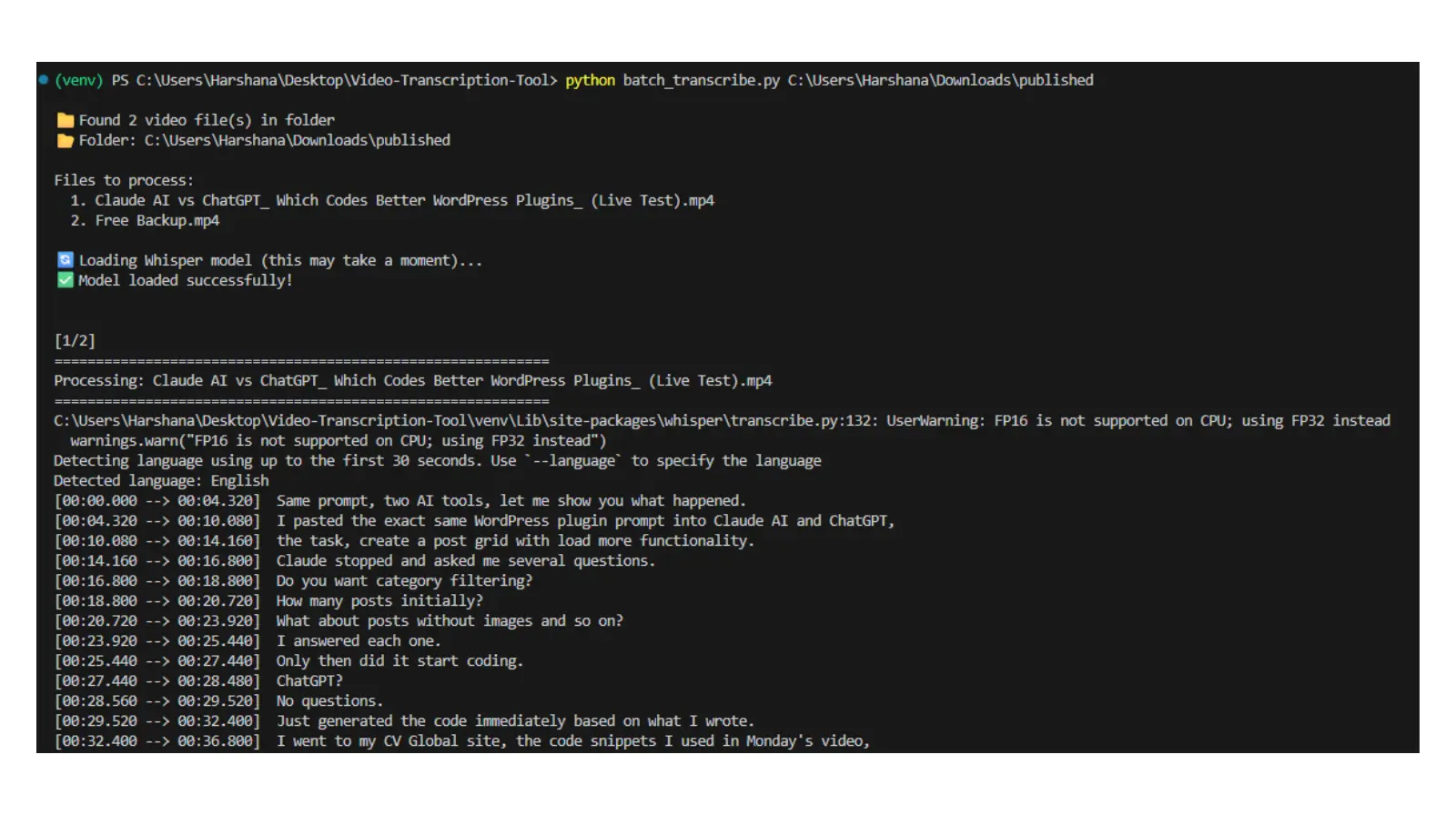
4. Take a coffee break (10-15 minutes for 5 videos)
5. Open the generated markdown file in VS Code:
- Beautiful syntax highlighting
- Easy to navigate with the table of contents
- Quick edits with
Ctrl+Fto find and replace
6. Edit the transcript:
- Quick cleanup (2-3 minutes per video)
- Format as blog sections
- Add images and internal links
- Copy sections to WordPress
- Publish to aibuilttools.com
Real Output Example
Here’s what the tool generated for two of my recent videos. This is the actual markdown file opened in VS Code:
# Video Transcripts

**Generated**: 2024-11-30 08:02:03
**Folder**: C:\\Users\\Harshana\\Downloads\\published
**Total Videos**: 2

---

## Table of Contents

1. [Claude AI vs ChatGPT_ Which Codes Better WordPress Plugins_ (Live Test).mp4](#claude-ai-vs-chatgpt-which-codes-better-wordpress-plugins-live-test)
2. [Free Backup.mp4](#free-backup)

---

## Claude AI vs ChatGPT_ Which Codes Better WordPress Plugins_ (Live Test).mp4

### Complete Transcript

Same prompt, two AI tools, let me show you what happened. I pasted the exact same WordPress plugin prompt into Claude AI and ChatGPT, the task, create a post grid with load more functionality...

### Timestamped Segments

**[0:00]** Same prompt, two AI tools, let me show you what happened.

**[0:04]** I pasted the exact same WordPress plugin prompt into Claude AI and ChatGPT,

**[0:10]** the task, create a post grid with load more functionality.
Clean. Organized. Perfect for editing in VS Code with markdown preview.
How to Turn This Into Income (Real Opportunity)
Nobody talks about this, but here’s the actual opportunity for people learning to build:
Market Rates for Transcription Services:
- 10-minute video: $30-50
- 30-minute video: $75-100
- 1-hour video: $150-200
Your Actual Cost:
- $0 + ~10 minutes of your time per video
The Math:
- Process 20 videos per month at $50 each = $1,000 revenue
- Your overhead = $0
- Processing time = 3-4 hours total
- Hourly rate = $250-400
Where to Find Clients:
Fiverr: Create a gig offering “24-Hour Video Transcription.” Compete on speed and quality, not price. Show sample outputs.
Upwork: Target YouTubers, podcasters, and course creators. They need transcription constantly. Filter for “transcription” jobs and pitch your fast turnaround.
Local Businesses: Training videos, internal meetings, documentation. They’ll pay premium rates for privacy-focused transcription that doesn’t upload to the cloud.
Course Creators: Everyone needs transcripts for accessibility compliance. Reach out to online educators on LinkedIn.
Marketing Agencies: Client video content needs transcribing regularly. They bill it to their clients.
Your Pitch: “I provide accurate video transcription in 24 hours. Your files stay private—never uploaded to cloud services. Starting at $50 per video.”
You’re not selling software. You’re selling time savings and convenience. Your clients don’t care that you’re using a free tool. They care that you deliver accurate transcripts fast with complete privacy.
But more importantly—you’re learning business skills, client management, and how to monetize technical knowledge. That’s worth more than any single project.
Troubleshooting Common Issues
“FFmpeg not found”
- Windows: Verify you added
C:\\ffmpeg\\binto PATH - Restart VS Code completely after PATH changes
- Or use the direct path method in the code (line 7)
“ModuleNotFoundError: No module named ‘whisper'”
- In VS Code terminal, run:
pip install -r requirements.txt
Slow processing?
- Close other applications
- Use “tiny” model for speed (change line 49):
model = whisper.load_model("tiny")# Fastest, lower accuracy
Poor accuracy?
- Use better audio quality in source videos
- Try “small” or “medium” model (change line 49):
model = whisper.load_model("small")# Better accuracy, slower
VS Code Python extension not detecting Python?
- Press
Ctrl+Shift+P - Type “Python: Select Interpreter”
- Choose your installed Python version
Terminal not working in VS Code?
- Press `Ctrl+“ to toggle terminal
- Or go to
View→Terminal
Advanced Tips (When You’re Comfortable)
Choose Different Model Sizes:
Edit line 49 in batch_transcribe.py:
model = whisper.load_model("tiny")# 70% accuracy, very fast
model = whisper.load_model("base")# 80% accuracy, fast (default)
model = whisper.load_model("small")# 85% accuracy, medium speed
model = whisper.load_model("medium")# 90% accuracy, slower
model = whisper.load_model("large")# 95% accuracy, slowest
Force Specific Language:
Edit the transcribe_single_video function (line 17):
result = model.transcribe(video_path, verbose=True, language='en')# English
result = model.transcribe(video_path, verbose=True, language='es')# Spanish
result = model.transcribe(video_path, verbose=True, language='hi')# Hindi
Enable GPU Acceleration (3-5x faster):
Requires NVIDIA GPU. In VS Code terminal:
pip install torch torchvision torchaudio --index-url <https://download.pytorch.org/whl/cu118>
Create a Custom Output Template:
You can modify the output format in the batch_transcribe_folder function (starting at line 79) to match your exact needs. This is where you learn by doing—open the code in VS Code, experiment, and see what happens!
Why I Love Using VS Code for This
Using VS Code for this project made everything easier:
1. Integrated Terminal
No switching between windows. Write code, run it, see results—all in one place.
2. Markdown Preview
Press Ctrl+Shift+V to see a beautiful preview of your generated transcripts right in VS Code.
3. IntelliSense
As you type Python code, VS Code suggests completions and shows documentation. Perfect for learning.
4. Easy Debugging
If something breaks, VS Code highlights the error line and helps you fix it.
5. Git Integration
When you’re ready to version control your improvements, it’s all built-in.
6. Extensions
Add Python linting, formatting, and other tools as you grow. VS Code grows with you.
This is why I use VS Code for everything now—from quick scripts like this to full web applications.
The Bottom Line
I built this because I was tired of:
- Monthly subscription fees for something I could do myself
- Uploading my content to random servers
- Hitting usage limits mid-project
- Waiting 24 hours for “fast” transcription
Now I have a tool that:
✅ Runs on my laptop
✅ Costs nothing to use
✅ Works offline completely
✅ Processes unlimited videos
✅ Keeps my data private
✅ Lives in VS Code, where I do all my work
The math is simple.
But more than that—I learned something new. I built something useful. I now understand how AI transcription works, how to integrate Python libraries, and how to solve real problems with code.
In this digital era, that’s the real value. Not the tool—the skill of building tools.
Related Resources:
- How I Built a WordPress Social Share Plugin with AI in 15 Minutes – Learn AI-assisted WordPress development
- WordPress Plugin Finder Tool – Find the perfect WordPress plugins with AI
- Blog Post Outline Generator – Turn your transcripts into structured blog posts
- How to Add Custom Code to WordPress Without a Page Builder – Another AI + coding tutorial
No restrictions. No gotchas. Just working Python code you can use immediately.
Frequently Asked Questions
Q: Do I need to know Python?
A: No. If you can follow instructions in VS Code and copy-paste, you can do this. Zero coding experience required. But you’ll learn a bit along the way—that’s the point.
Q: Will this work on Mac?
A: Yes. VS Code works exactly the same on Mac. Just use brew install ffmpeg instead of the Windows installation method. Everything else is identical.
Q: Why VS Code instead of just using command line?
A: VS Code gives you syntax highlighting, error detection, integrated terminal, and markdown preview. It’s way easier to learn and debug. Plus, you can see your code and results in one window.
Q: Can I process videos longer than 1 hour?
A: Yes. I’ve processed 2-hour course videos with no issues. Just takes proportionally longer.
Q: Does this work completely offline?
A: Yes! After initial setup, everything runs locally. No internet needed. Your videos never leave your computer.
Q: Can I use this for client work?
A: Absolutely. Process videos for clients, sell transcription services, whatever you want. No licensing restrictions.
Q: What video formats work?
A: MP4, AVI, MOV, MKV – basically anything FFmpeg can handle (which is everything).
Q: Can I improve accuracy?
A: Yes. Use higher quality audio in source videos, try larger models (small/medium), and specify language explicitly. All editable in VS Code.
Q: Do I need VS Code or can I use another editor?
A: You can use any text editor. But VS Code is free, beginner-friendly, and has everyt